
Getting Started
Installing Eclipse
To install Eclipse:
- Download and run the Eclipse Installer.
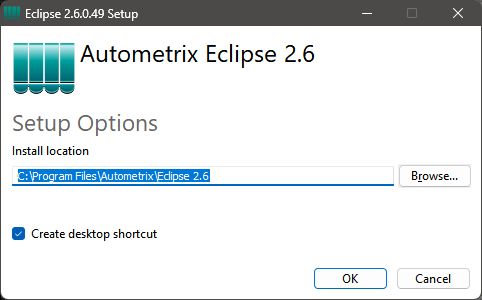
- Click Options. Here you can choose the installation folder and create desktop shortcut.
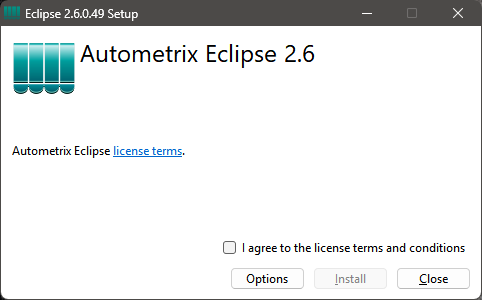
- Click Install once you have agreed to the Terms and Conditions.
- After installation is complete, you can choose to launch Eclipse.

Activating Eclipse
When Eclipse is installed and run for the first time, a Product Unlocking window will appear. If you do not have a previous installation of Eclipse on your computer, the software will install in a 30 day trial mode. The software will be fully functioning for 30 days. After that, it will become “locked” and will not allow exporting awning panels. Saving files will also be disabled.
Eclipse unlock encryption is now fully FIPS compliant.
Activation Steps
There are two ways to activate Eclipse, with an activation key or by an unlock request. The preferred method is through an activation key.
Activation Key
After the purchase of an Autometrix machine or software, an activation key will be given to you. Once you have received the activation key, click Activate With Key.

After you enter your Activation Key, the current status will change to Activated.
If you cannot find or did not receive your activation key, please contact support@autometrix.com to retreive your Activation Key.
Unlock Request
Only use the Unlock Request method when internet access is not readily available.
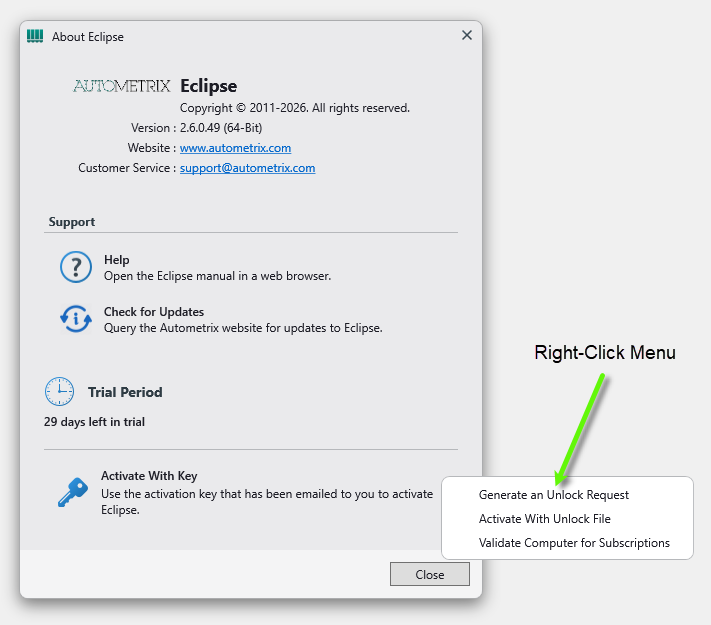
- Go to File – About. Right-click on Activate With Key and click on Generate an Unlock Request. An unlock request file (EclipseUnlock.request) will be placed on your desktop.
- On a computer with internet access, email that file to support@autometrix.com. You will get back an unlock file (unlock.Eclipse).
Right-click on Activate With Key and click Activate with Unlock File. The current status will change to Activated.
Deactivating Eclipse
The easiest and most complete way to revoke an unlock is by deactivating from within the software itself. A connection to the internet will be necessary. Contact support@autometrix.com if an internet connection is not available.
In the software go to File – Help and click Deactivate Eclipse.

The software will contact the unlock site, which will release the license seat and revoke the unlock in the unlock site. The software will automatically delete its unlock and revert to a locked state with limited functionality.