
Setting Theta Offsets
Adjusting the Theta Offset values is necessary when replacing a Cutting Head with a loaner, repaired, or new Cutting Head.
If you need to adjust the Theta Offset to compensate for miscuts due to the rolling blade “toeing” in one direct or the other, you can use these methods to help correct this issue. This would be used as a last resort after confirmation that the blades are sharp, rolling blade holder components are in good working order, and there are no other mechanical issues with the Cutting Head. Decreasing the Theta Offset value for either Device would result in a clockwise adjustment to the blade angle. Increasing the Theta Offset value for either Device would adjust the blade angle counter-clockwise.
Cutting Head Sticker shown here: First/Top value = Device 1, Second/Bottom value = Device 2.

For machines with a Kinematix motion controller, you must renew the connection to the plotter after changes to the Device 2 Theta Offset.
To renew the connection, in PatternSmith go to the Plot/Cut tab and click on Properties in the Plotter Configuration section. In the Properties window click Renew Connection and then Configure a TCP/IP Plotter. Now click Next and then Finish. Close the Properties window.

Screen Method – Kinematix and Extratech
The easiest way to set or make changes to your Theta Offsets will be on the machine, through the touch screen. This will be available on all Kinematix controller machines and Extratech controller machines with SMRT Screens. Customer Service will help you determine which machine you have.
From the main screen, select the Menu button in the upper right-hand corner and select More Options.

Now select the Cuttinghead Offsets button.
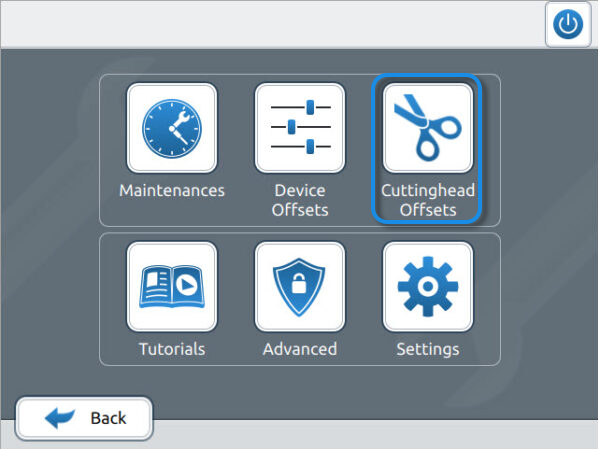
Enter the values for Device 1 and Device 2 from the sticker on the Cutting Head into the appropriate fields on the screen. Select the Save and Shutdown button to save your changes. After the machine restarts, renew the connection to the plotter in PatternSmith.

AMXDeviceConfig – Kinematix Controllers
AMXDeviceConfig should already be installed. If not, the installer can be downloaded here: https://downloads.autometrix.com/software/AmxDeviceConfigSetup.exe
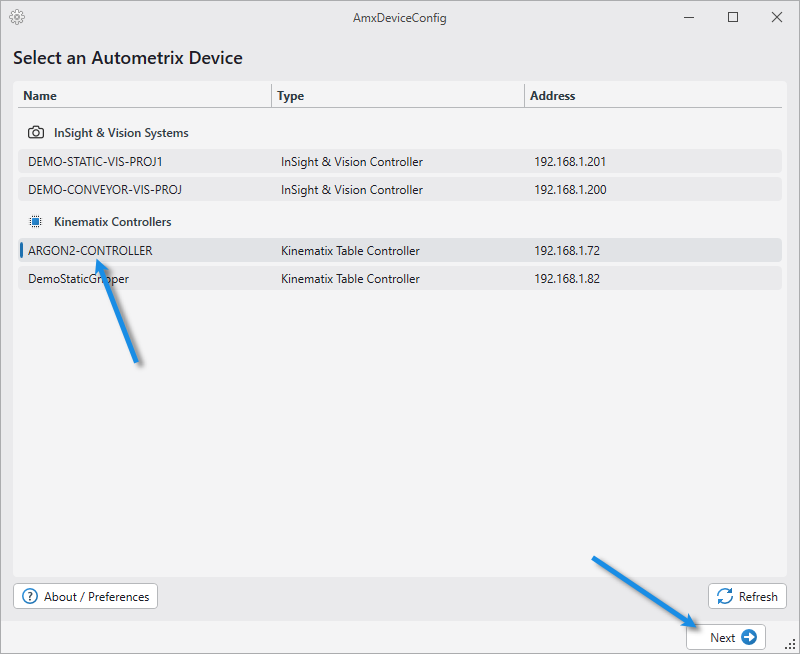
Run AMXDeviceConfig, select the machine, and click Next.
Select Table Controller Actions.

Select Edit Table Controller Settings.

Enter the two offset values. Steered 1 is the same as Device 1. Steered 2 is the same as Device 2. Click Finish.

Click OK on the next window and the Exit AMXDeviceConfig.

Power cycle the machine. After the machine restarts, renew the connection to the plotter in PatternSmith.
Theta Offset Setter – Extratech Controllers
This tool is for all machines using Extratech based controllers.
You can download the Theta Offset Setter tool here: https://downloads.autometrix.com/software/Theta Offset Updater.zip
You can extract Theta Offset Setter.exe from the Zip file or open the Zip file and run it from there. If you don’t extract the file, you will see a warning window. First click More Info, then, at the bottom, click Run Anyway.
Choose your machine and click Connect.

Enter the values as instructed in the window and click Set Offsets and close the tool. Restart the cutting machine. After the machine restarts, renew the connection to the plotter in PatternSmith.
